You think you’re sending a clean document. The text looks normal. The formatting is intact. But hidden inside that file are digital breadcrumbs-author names, creation timestamps, device IDs, and even revision histories-that can point straight back to you. For whistleblowers and confidential sources, these traces aren’t just annoying; they are dangerous. They allow investigators to correlate a leak with specific employees, work schedules, or internal systems.
Cleaning PDF metadata is the process of stripping identifying data from Portable Document Format files to protect the anonymity of the creator is no longer optional if you want to stay safe. It is a core requirement of operational security in the digital age. This guide explains exactly what is hiding in your files, why standard tools often fail, and how to sanitize documents using secure, offline methods that keep your identity protected.
What Is Hidden Inside Your PDF?
Most people assume a PDF is just a static image of text. In reality, it is a complex container holding multiple layers of data. When you create or edit a document, software automatically embeds information into two main areas:
- The Info Dictionary: This is the older metadata layer containing fields like Author, Title, Subject, Creator, Producer, CreationDate, and ModDate.
- The XMP Stream: Extensible Metadata Platform (XMP) is a newer XML-based block that stores richer data, including GPS coordinates from embedded images, camera serial numbers, and custom properties.
Beyond these structured blocks, PDFs often carry "hidden" content that isn't immediately visible but is easily extractable by forensic tools. This includes comments, annotations, form field data, embedded files (like spreadsheets attached to a report), and revision history. If you converted a Word doc or PowerPoint slide deck to PDF, you might also have speaker notes or track-changes remnants lurking in the code.
For a whistleblower, this is critical. An adversary doesn't need to hack your computer. They just need to open the leaked PDF in a hex editor or use a simple metadata viewer to see who created it, when it was last modified, and which version of Adobe Acrobat generated it. That data, combined with office access logs, can identify you quickly.
Why Standard Tools Often Fail
Many users try to fix this problem using built-in features in common software. While better than nothing, these methods are frequently insufficient for high-risk scenarios.
Adobe Acrobat Pro’s “Remove Hidden Information” feature is a step in the right direction. It scans for metadata, hidden text, and comments. However, it requires a paid subscription, installs heavy software on your machine, and may not strip every obscure field depending on the PDF structure. More importantly, if you are already under surveillance, installing new enterprise-grade software can raise flags.
Microsoft Office’s “Inspect Document” tool works well for native .docx or .xlsx files, removing track changes and properties before conversion. But once that file becomes a PDF, it generates *new* PDF-level metadata. You must scrub the PDF separately, adding another layer of complexity.
Online Metadata Removers present a severe risk. Many free websites claim to clean your files, but they do so by uploading your document to their servers. For a whistleblower, this is catastrophic. You are handing your sensitive evidence to a third party whose privacy policy you cannot verify. Even if they promise deletion, network logs and server backups could expose your data. Never upload confidential leaks to cloud-based cleaners.
The Secure Workflow: Offline and Client-Side
To truly protect yourself, you need a workflow that ensures your files never leave your control. The gold standard for high-risk document handling involves three principles: local processing, comprehensive stripping, and verification.
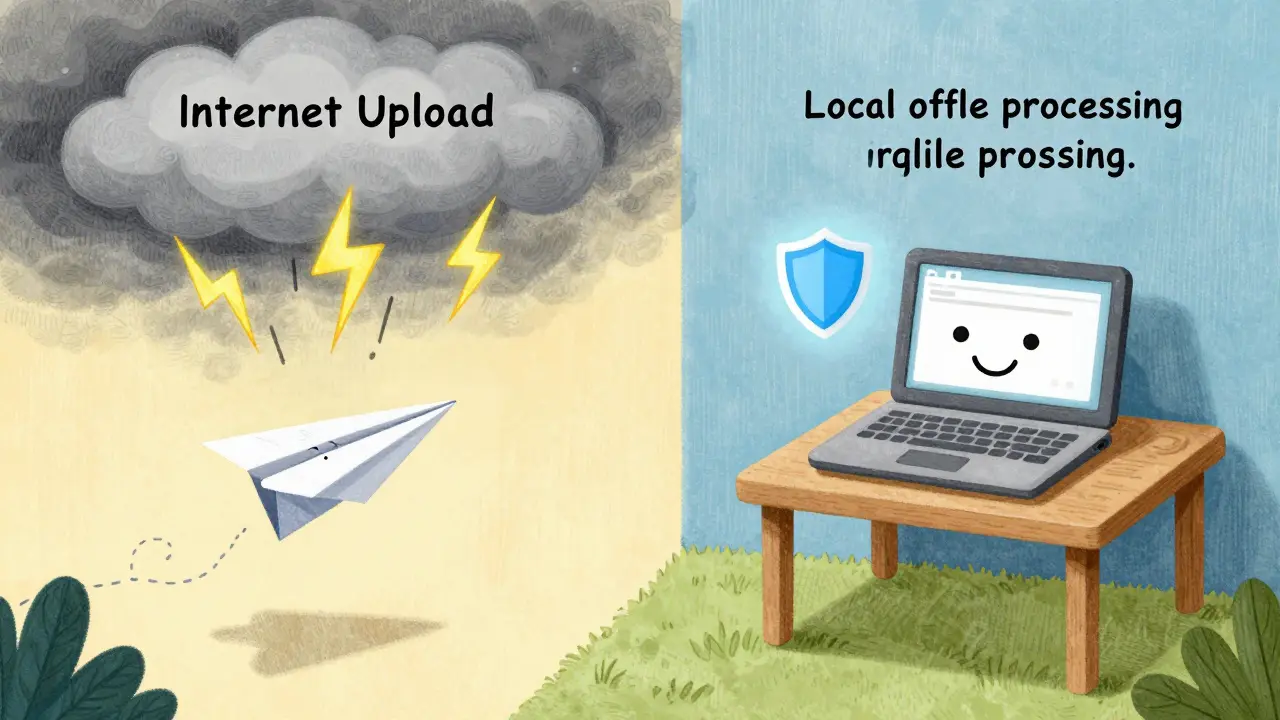
First, avoid internet-connected machines if possible. Use an isolated laptop or a live operating system like Tails, which runs from a USB stick and leaves no trace on the host computer. Second, choose a tool that processes files locally. This means the cleaning happens within your browser or on your hard drive, without sending bytes to a remote server.
One effective option for this is Vaulternal's PDF metadata remover. Unlike cloud services, this tool runs entirely in your browser using WebAssembly and JavaScript. You can verify this by opening your browser’s developer tools and checking the Network tab-you will see no uploads occurring while the file is processed. It strips both the Info dictionary and the XMP stream, ensuring no parallel metadata stores are left behind. Because it operates client-side, there is no signup, no watermark, and no server-side handling of your document at any stage.
Step-by-Step: How to Sanitize a PDF
If you are preparing a document for release, follow this rigorous checklist to minimize forensic exposure:
- Create a New File: Do not edit the original leaked document. Copy the content into a fresh document created on a secure, isolated system. This breaks the link to the original author’s account and creation timestamp.
- Strip Visible Identifiers: Manually check for headers, footers, watermarks, or signatures that contain names or dates. Remove them visually.
- Use a Local Cleaner: Run the file through a robust metadata stripper. Ensure the tool targets both the Info dictionary and XMP streams. Look for tools that offer a “view mode” so you can inspect what is being removed before you commit to the cleanup.
- Check Embedded Objects: If the PDF contains images, ensure those images are also stripped of EXIF data (GPS, camera model). Some PDF cleaners miss nested image metadata. You may need to clean images separately before embedding them.
- Verify the Output: After cleaning, re-open the file in a metadata inspector. Confirm that fields like Author, Creator, and Producer are empty or generic. If using a tool that exports a JSON record of removed fields, save that log for your own records-it proves due diligence if questioned later.
- Convert to Image (Optional Extreme Measure): For maximum paranoia, print the cleaned PDF to a high-resolution image, then re-assemble those images into a new PDF. This destroys all structural metadata. Note that this reduces searchability and increases file size, so use it only when necessary.
Advanced Threats: Beyond Metadata
Even with perfect metadata hygiene, sophisticated adversaries can use other techniques to identify sources. Be aware of these residual risks:
- Stylometric Analysis: Your writing style, spelling habits, and phrasing can be unique. Edit your text to neutralize idiosyncratic language. Avoid slang or regional dialects that might pinpoint your location or background.
- Printer Yellow Dots: Many color laser printers embed tiny yellow dots (machine identification codes) on every page. These encode the printer’s serial number and timestamp. If you print and scan documents, use a black-and-white inkjet or a printer known not to use MIC technology.
- Background Noise in Audio: If your leak includes audio recordings, background sounds (air conditioners, traffic patterns, unique room acoustics) can help triangulate the recording location. Use noise-reduction software to flatten ambient sound.
Metadata cleaning is just one layer of defense. Combine it with secure communication channels (like Signal or Session), encrypted email (PGP), and minimal trust circles to build a resilient protection strategy.
Comparison of Cleaning Methods
| Method | Privacy Risk | Effectiveness | Cost/Access |
|---|---|---|---|
| Online Cloud Cleaners | High (File uploaded) | Moderate | Free |
| Adobe Acrobat Pro | Low (Local) | High | Paid Subscription |
| ExifTool (Command Line) | None (Local) | Very High | Free (Technical Skill Required) |
| Vaulternal Metadata Remover | None (Client-Side Browser) | High | Free, No Signup |
Best Practices for Journalists and Intermediaries
If you are a journalist receiving documents from a source, your duty extends beyond publishing. You must actively protect the source’s identity. Implement a standardized intake protocol:
- Automated Scrubbing: Integrate metadata removal into your secure drop workflow. Tools like MAT (Metadata Anonymisation Toolkit) can be scripted to run automatically upon file receipt.
- Education: Advise sources on basic hygiene. Tell them to disable auto-save features that create temporary files with their username, and to avoid editing documents on corporate devices.
- Verification: Always inspect incoming files before archiving or sharing them internally. One uncleaned PDF can compromise an entire investigation.
The legal profession has recognized these risks. Bar associations now mandate that lawyers use reasonable care to prevent metadata disclosure, treating it as part of the duty of confidentiality. Whistleblower protection should hold the same standard. By adopting rigorous metadata cleaning practices, you uphold ethical obligations and reduce the risk of retaliation against those who speak truth to power.
Final Thoughts on Operational Security
Cleaning PDF metadata is not a one-time task; it is a mindset. As forensic techniques evolve, so too must your defenses. What worked in 2020 may be vulnerable today. Stay informed about new tracking methods, such as steganography or advanced font fingerprinting.
Remember that technology alone cannot save you. Human error remains the biggest vulnerability. Double-check your steps. Verify your tools. And always prioritize local, transparent solutions over convenient cloud services. Your safety depends on controlling every byte of data you share.
Can I remove PDF metadata without installing software?
Yes. You can use browser-based tools that process files locally, such as Vaulternal's Metadata Remover. These tools run via WebAssembly in your browser, meaning the file never uploads to a server, and no installation is required.
Does converting a Word document to PDF remove its metadata?
No. Converting a Word document to PDF often transfers existing metadata (like author name and creation date) into the new PDF's Info dictionary and XMP stream. You must scrub the resulting PDF separately to ensure all traces are gone.
Is it safe to use online PDF metadata removers for sensitive documents?
Generally, no. Online services require uploading your file to their servers, creating a potential point of failure where your data could be logged, intercepted, or accessed by unauthorized parties. For whistleblowing or confidential sources, always use local or client-side tools.
What is the difference between the Info dictionary and XMP metadata?
The Info dictionary is an older, simpler metadata layer in PDFs containing basic fields like Author and Title. XMP (Extensible Metadata Platform) is a newer, more complex XML-based stream that can hold richer data, including GPS coordinates and custom properties. Effective cleaning requires stripping both.
Can redacting visible text hide metadata?
No. Redaction removes visible content, but it does not automatically delete underlying metadata, hidden layers, or revision history. You must use a dedicated metadata removal tool after redacting to ensure no identifying data remains.